Getting Started
Logging In
- You’ll receive an email from acgaccess@meetmax.com within 1-2 business days of registering inviting you to log in and complete your profile. If you don’t receive your invitation email, reach out to enduser-support@meetmax.com for assistance.
- The first time you login, you’ll be directed to review and update profile information. We also recommend adding a headshot to help others find you onsite.
- Save the email with your login details for future use.
Review the Event Schedule
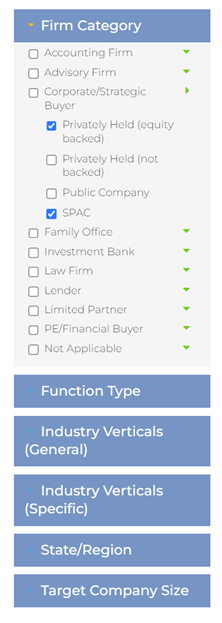
- Review the event schedule to see details of what’s happening each day. You can add education sessions, networking events, or other activities to your calendar by clicking the ‘+’.
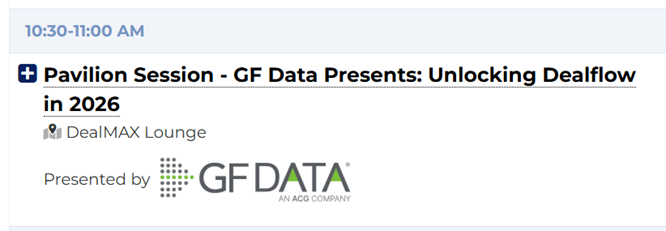
- To block out time on your schedule for non-conference activities, go to Meetings and click Blackout Times
Finding Attendees
Attendee List
To find attendees, go to the Meetings tab and select Request Meeting. This will bring up a list of all registered attendees who have access to the meeting scheduler. Note that you will not see your own name appear on the attendee list.
Search
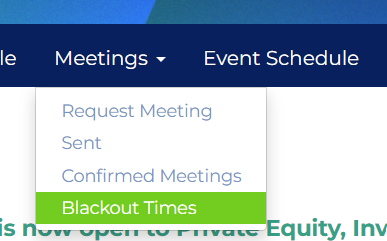
Use the search function for open-ended searches, like a company or individual’s name, or a particular time on your calendar where you’re available.
Checkbox Filters

View Profiles
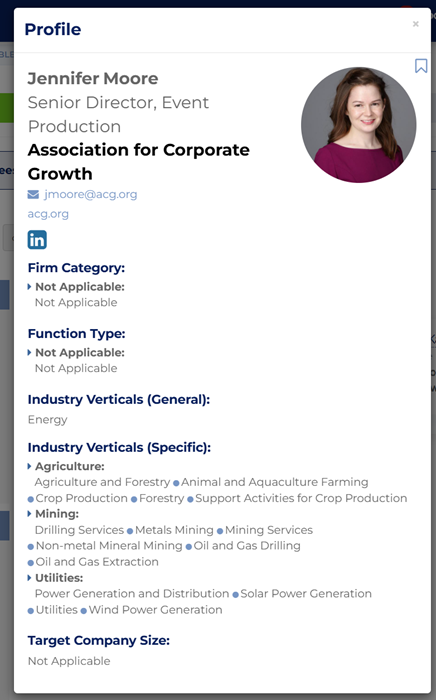
To learn more about a user, click their name or headshot and a panel will open displaying additional information.
Scheduling Meetings
Sending Meeting Requests
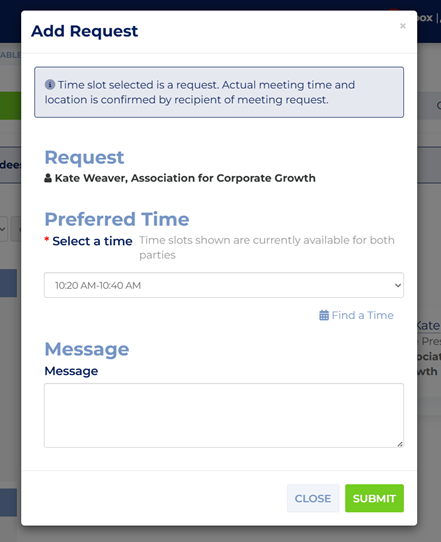
Use the ‘Request’ button that appears in the bottom-left of the attendee card to request a meeting.
Upon clicking ‘Request’, you will be prompted to submit a desired duration (required), a suggested time slot, and an optional message. We encourage you to write message explaining why you’d like to meet; intentional requests lead to more accepted meetings.
Note: You can only send a meeting request to one attendee. You can add colleagues or additional attendees after the meeting is confirmed.
Accepting Meeting Requests
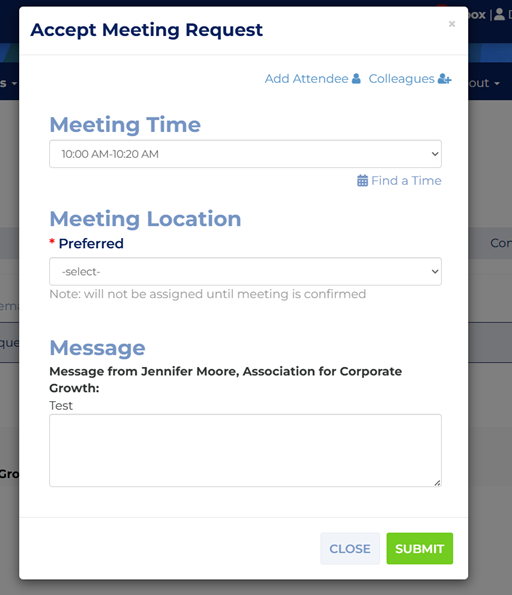
Click the “Received Requests” button to view all received requests.
Next, click the button labeled “Accept” to then confirm the meeting duration and preferred location. You also have the option to add additional attendees in the top-right corner of the dialog box and/or send a message to the requestor upon accepting the request.
Once all information is confirmed, click “Submit” to schedule.
Editing a Meeting
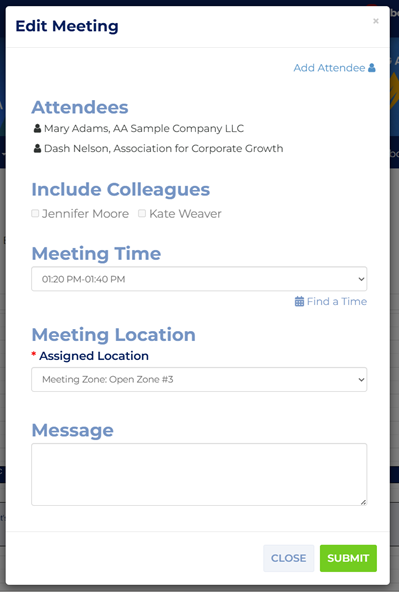
To edit an existing meeting, go to My Calendar, select the meeting, and click Edit. This will allow you to change the meeting time and location, as well as to add another attendee to the meeting or transfer the meeting to a colleague.
Transferring or Adding a Colleague to a Meeting
You can transfer a meeting request to colleague or add a colleague or other attendee by going to your Received Requests, Sent Requests, or My Calendar and selecting the Edit option.
View Colleagues’ Schedules
You can view the schedules of other attendees from your organization by going to the Firm Schedule tab. If you don’t see a registered colleague’s schedule, it’s likely that your company names do not match. You can reach out to enduser-support@meetmax.com for assistance linking your schedules together.
Where Can I Hold My Meeting?
- If you have a dedicated meeting space through your registration or sponsorship, it will come up as a location option when confirming meetings
- There are also open meeting spaces throughout the convention center, including Open Meeting Zones, the DealMAX Bar, and the Recharge Hub in the DealMAX Lounge.
Other FAQs
How Do I Download My Schedule?
You can download your meeting schedule to your Outlook or other calendars by going to Meetings > Confirmed Meetings and selecting the ‘Export Calendar’ button. We recommend waiting until closer to the event in case your meetings are updated. You’ll also have the option to print your schedule in different formats.
Is There a Mobile App For This Event?
The ACG Access app will be released closer to the event in both the App Store and Google Play. Attendees will receive an email announcement with download information.
Who Can Provide Further Tech Support?
Reach out to enduser-support@meetmax.com for assistance.